So you can use a Raspberry Pi. What difference will it make to Marty whether I use the Pi or connect directly with my device?
21 of 21 linked standards shown.
| Curriculum area | Linked standards |
|---|---|
| Digital Technologies, Design & technologies: Digital Technologies |
Select a code to read the full standard.
| Curriculum area | Linked standards |
|---|---|
| General standards |
Select a code to read the full standard.
| Curriculum area | Linked standards |
|---|---|
| Health and Wellbeing: Mental, Emotional, Social and Physical Wellbeing | |
| Literacy & English: Listening and Talking | |
| Literacy & English: Reading | |
| Literacy & English: Writing | |
| Technologies: Computing Science | |
| Technologies: Craft, Design, Engineering and Graphics |
Select a code to read the full standard.
| Curriculum area | Linked standards |
|---|---|
| Computing, Design and Technology: Computing |
Select a code to read the full standard.
| Curriculum area | Linked standards |
|---|---|
| International Society for Technology in Education (ISTE) |
Select a code to read the full standard.
This lesson assumes that Raspberry Pis are available as a resource and have been setup and linked to a device. For resources supporting the setup of a Raspberry Pi, please refer to the links in the additional reading section.
In this lesson, learners will be connecting Marty to the Raspberry Pi and writing some basic commands. Learners will compare what they could do with these programs when run directly from a device and when run from the Raspberry Pi, attached to Marty.
Experience using Command line syntax, experience with a Raspberry Pi and python
| Timing | Activity | Possible adaptations |
|---|---|---|
| — | Warm UpAsk learners if they know of any programs, on their computer or device, that stop running on their device when it is turned off: shut down or stand by. Examples may include some games, internet browsers, a variety of apps. Ask if they know of any programs that run when their device is turned off. Examples may include a clock or calendar, some games, some apps. When are there applications that fall into both categories: are there some apps that turn off when you turn off your phone while others remain on? Is there a reason for this? What do you think? Ask learners if they think it is a good idea for all programs running on a device to stop running when the device is 'off' or would they prefer the application to continue to run. Are there times when you want an app to stop running, even when it is not closed? List examples for each. Discuss why it makes sense for some apps to continue running 'in the background' while it is preferred that other apps close when you go to standby. What about when there are multiple devices running similar code, is it better to have one master device controlling and monitoring everything or is it better to have each device with individual control? Are there occasions where one or the other is preferred? Can you think of any of these and justify why one or the other is better? | — |
| Timing | Activity | Possible adaptations |
|---|---|---|
| — | Get LearningIntroduce Marty with a connected Raspberry Pi and a Marty without one. Inform the class that you are going to run the same program on these two Martys but they way the program connects with each Marty is different. Task the learners with thinking about how they might be different, reassure them that what they can see, by looking at both Martys, from where they are sitting, is exactly the same and that both Martys are the same model, they may have even been made around the same time. In fact, the code for both Martys is running on one device. It is just as possible to do this with two devices rather than one. Record any ideas the learners suggest for the differences between the two devices. Additionally, have learners complete the activities on the first page of their workbook, which relates to this. Without showing the display to the learners for the devices that will be running the Marty script, load and run the command to have the Marty walk for 10 steps on both the device running through the Raspberry Pi and the one acting directly with Marty; inform learners that this is what the command is doing. Point out that both Martys are carrying out exactly the same actions, with the same code causing said actions. Then run both programs a second time. Shortly after running the script, close the lid for the devices, or put them it in standby mode; if this will take too long to 'wake' from, perhaps disconnecting the wifi or the ethernet cable would be more suitable. Alternatively, you could show the video from the PowerPoint presentation, the first shows both Martys walking for 10 steps, the second shows one of the Martys walking 10 steps and the other stopping after 4. The first video is above and the second is below; additionally, there is a short video showing the code on the devices starting and then the lid closing, then the cameras pans to both Martys: one has stopped and one continues. |
| Timing | Activity | Possible adaptations |
|---|---|---|
| — | Cool DownBring learners back together to discuss the learning that occurred. Have groups share their thoughts about code that relies on a person monitoring everything and code that is more autonomous - the code works so it should be able to run reliably without oversight. Encourage every group to suggest their ideas about everyday instances where code is essential for everyday events to run reliably. Suggested questions you might ask:
Carry out any end of lesson routines. Log off devices and clear everything away. | — |
One Marty will stop and the other will continue going. Ask why that might have happened, record ideas on a display. Return to the ideas in the warm-up, which apps keep running in the background on your device. Something like that is happening here. Putting the device that is controlling Marty in standby stops a script's execution, but one Marty doesn't stop. Run the scripts again, if learners want to see it, perhaps they think they missed something or think you did something sneaky. Wait for the walking to stop and then open the heads for both Martys for learners to see the difference.
Both code samples are downloadable in the resources section.
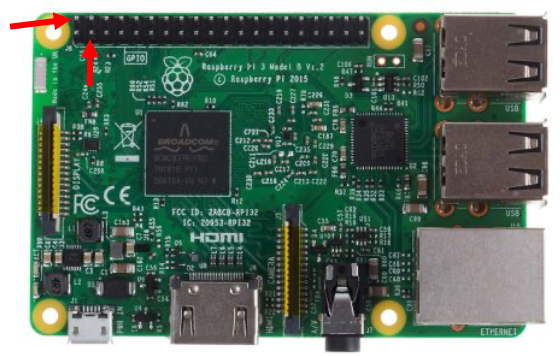
The learners will see that one of the Martys has an additional device, which they will recognise as a Raspberry Pi. The Pi did not go into standby, in fact, the device on the teacher's desk was only relaying the information to the Pi: the Pi will still be on, now. Have learners refer back to the tasks on the first page of their workbook, they may have additional thoughts: ideas about the difference between running scripts on the device in front of them, that directly connects to Marty through wifi, and executing commands via an intermediary device, a device that will remain on and the code will run on (the raspberry pi): what might happen in the real world if an important script were run and then suddenly stopped because someone tripped on a power cable or spilled coffee on a device? Learners may suggest that important systems likely have backup generators, which is likely true, but this might still result in a couple of seconds of downtime, which could be avoided.
| — |
| — | Time For PracticeHave learners refer to their notes from past lessons to find something interesting to run, that can continue without supervision or control. Once the commands start, the Pi will take care of everything. Have learners detail the potential problems of programs shutting down, if a connected device were to shut down. Have learners create a flow chart for a process, for example an alarm or traffic lights, and why they need to have a local control that keeps them on rather than a remote system that keeps the power on. Also inform that something may be monitoring the system remotely but the code is not solely reliant on a distant device. | SupportHave physical flowchart cards available for creation in the workbooks. Have the line of code that is necessary for connection to the Pi copied onto piece of paper to enable easier typing in the device. |
Have learners research past problems that occurred due to a failure of a remote device. Task learners to determine about where the code failed and why. Have learners suggest results if the code had been handled by a local device.